
问题
I am trying to create some type of list of controls for multiple objects. The object is for a pattern displayed on a screen and has several different attributes such as duration, offset, next pattern, pattern index. I would like to be able to create an iterable list of controls so I can easily set the different attributes of each pattern in my GUI. Here is a rough draft of the form I'm creating. Here is a link to the form i'm creating.
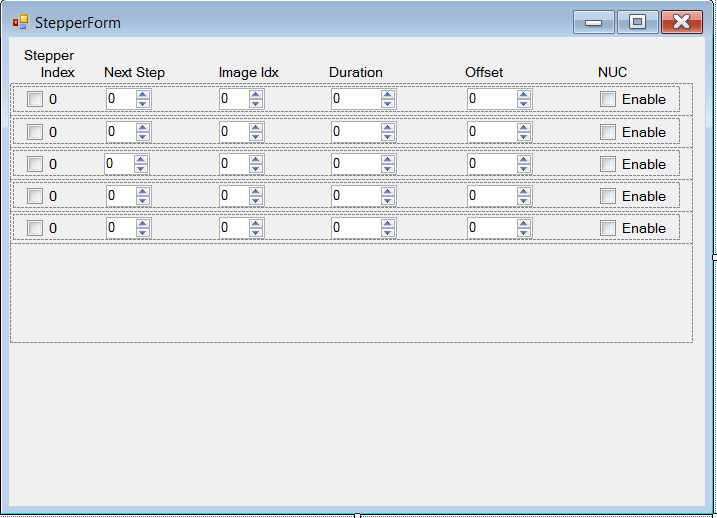
Each line is a collection of attributes for a pattern. I would like to be able iterate through each one of those lines in the code somehow and set the attributes of each pattern based off of the user input. From what I've read so far I think I want to use an ItemsControl tool and somehow bind it to the GUI, but I'm not really sure how to do that or if that is what I should do. What I'm using now is a TableLayoutPanel with multiple Panels, but it doesn't seem that there is much control in these tools. How should I group the controls of each line together and then iterate through each line efficiently?
回答1:
Okay I think I have achieved what you were going for Sport, I know WPF better than WinForms, but here is my solution that I just "self-taught" myself.
I'm going to assume there won't be any problems with doing this in your solution.
First create a User Control. I did a Right Click on my WinForm project > Add > User Control. This is where you're going to be adding the content that make up the rows. So it should look like this, and I named my user control RowContent:

Make sure you have your name your controls. So for the check box, I named it stprIndex_chkBox, enable_chkBox and so on.
Now you need to implement the functionality you want for each of the controls using. So, you're going to want to change the value of your stprIndex_chkBox.Text, and the enable_chkBox.Checked for starters. You're also going to want to access the Values of you numericalUpDowns. So in RowContent.cs I added getters and setters depending on the data I needed from the form. So here is a snippet of the accessors (remember you will want to add more):
public partial class RowContent : UserControl
{
    public RowContent()
    {
        InitializeComponent();
    }

    public string SetChkBox1Text
    {
        set { stprIndex_chkBox.Text = value; }
    }

    public bool IsEnabledChecked
    {
        get { return enable_chkBox.Checked; }
    }
}
Now you see, these will allow you access of the variables outside the RowContent class. Let's move on to the TablePanelLayout control.
I created an additional User Control the same way I created RowContent, but this time I named it ContentCollection. I set AutoSize of the User Control to true and dropped TableLayoutPanel ( named tableLayoutPanel1 ) onto it.
For the sake of saving time, I added all the controls into the rows dynamically like this:
public partial class ContentCollection : UserControl
{
    public ContentCollection()
    {
        InitializeComponent();
        RowContent one = new RowContent();
        RowContent two = new RowContent();
        RowContent three = new RowContent();
        RowContent four = new RowContent();
        RowContent five = new RowContent();
        RowContent six = new RowContent();
        tableLayoutPanel1.Controls.Add(one);
        tableLayoutPanel1.Controls.Add(two);
        tableLayoutPanel1.Controls.Add(three);
        tableLayoutPanel1.Controls.Add(four);
        tableLayoutPanel1.Controls.Add(five);
        tableLayoutPanel1.Controls.Add(six);
        tableLayoutPanel1.SetRow(one, 0);
        tableLayoutPanel1.SetRow(two, 1);
        tableLayoutPanel1.SetRow(three, 2);
        tableLayoutPanel1.SetRow(four, 3);
        tableLayoutPanel1.SetRow(five, 4);
        tableLayoutPanel1.SetRow(six, 5);
    }
}
This gives me:
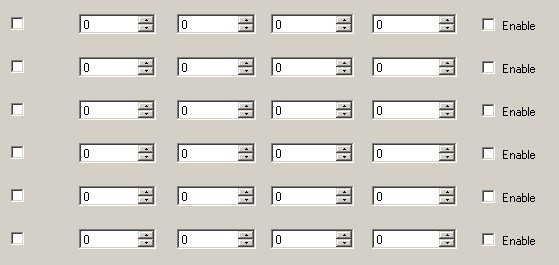
Now here you can see we are adding these things dynamically. I hope you can picture how to "customize" this User Control when you're using it in your WinForm. In this same file you're going to want to add some more Getters/Setters/functions depending on what you want to do just like the other User Control; so, AddAdditionalRow(RowContext rc) and so on. I actually cheated and changed the tableLayoutPanel to be public to make this quicker in the end.
So finally, you have your ContentCollection that will hold your custom object, now you need to add it to your Form.
Go to your Form, open up your Toolbox and scroll to the top to see your Form there! Drag and drop it on your main form and vio'la. Now, to iterate through the RowContent, it is fairly easily. Since I drag and dropped my User Control onto the Form, I was able to name it (userControl12) and start accessing the controls right away. Check out how I add check marks to every other checkbox and dynamically change the Stepper Index:
public partial class Form1 : Form
{
    static int i = 0;
    public Form1()
    {
        InitializeComponent();
        foreach (RowContent ctrl in userControl11.tableLayoutPanel1.Controls)
        {
            ctrl.SetChkBox1Text = i.ToString();
            if (!ctrl.IsEnabledChecked && i % 2 == 0)
                ctrl.IsEnabledChecked = true;
            i++;
        }
        foreach (RowContent ctrl in userControl12.tableLayoutPanel1.Controls)
        {
            ctrl.SetChkBox1Text = i.ToString();
            i++;
        }
    }
}
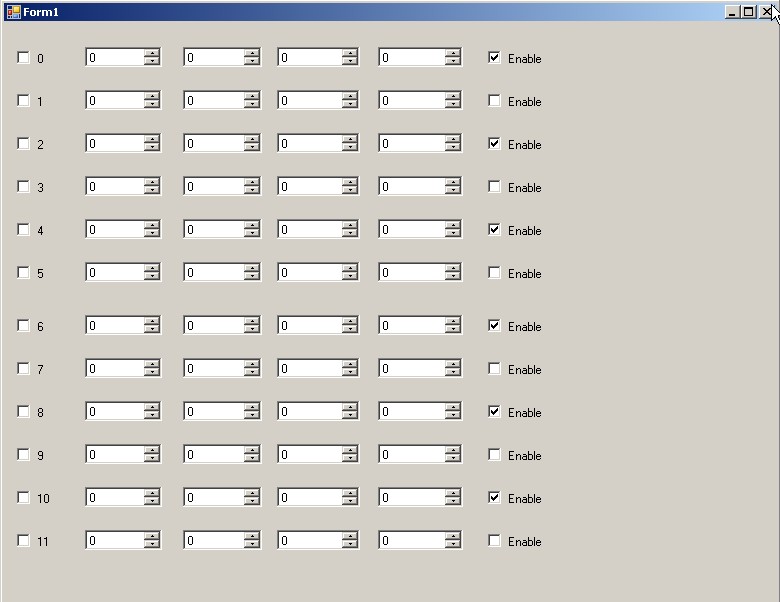
I'm not claiming this to be the best design out there... because it isnt, but it illustrates how to do such a thing. Let me know if you have any questions.
来源:https://stackoverflow.com/questions/11955642/controls-for-list-of-objects