
Step 11: Pages and Panels
修改App.view.xml
<mvc:View controllerName="sap.ui.demo.walkthrough.controller.App" xmlns="sap.m" xmlns:mvc="sap.ui.core.mvc" displayBlock="true"> <App> <pages> <Page title="{i18n>homePageTitle}"> <content> <Panel headerText="{i18n>helloPanelTitle}"> <content> <Button text="{i18n>showHelloButtonText}" press=".onShowHello"/> <Input value="{/recipient/name}" description="Hello {/recipient/name}" valueLiveUpdate="true" width="60%"/> </content> </Panel> </content> </Page> </pages> </App> </mvc:View> 这里使用了新的控件sap.m.Page。
Page控件提供一个0到n的聚合,这个聚合是content。

Page也被放在sap.m.App的聚合pages中,并且sap.m.App还提供了两个重要的功能。
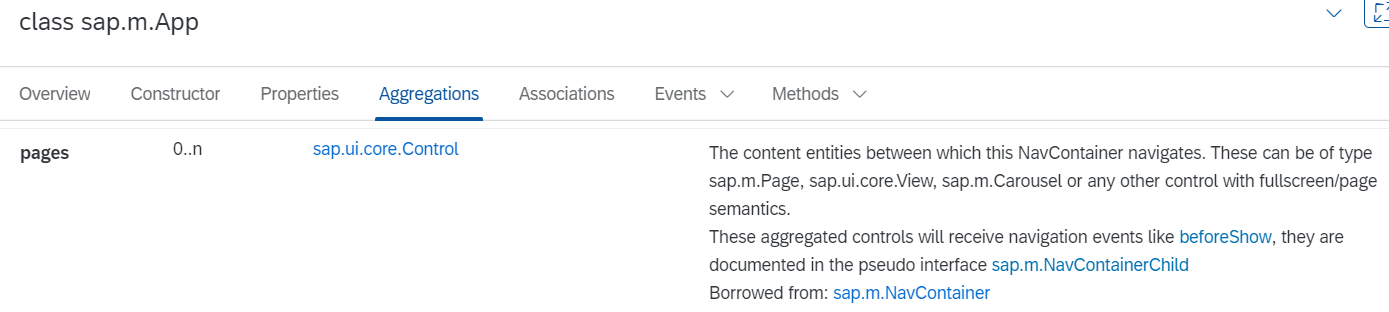
1,它将一些属性写入index.html的头部,这些属性对于在移动设备上正确显示是必要的。
2,它提供了使用动画在页面之间导航的功能。
添加了displayBlock属性,为了使视图的全屏高度正常工作。
在Panel中也可以省略content,因为Panel控件将其声明为默认值,但是为了便于阅读,都会显示声明聚合内容。
XMLView控件书写的顺序
在XMLView中,有大写字母开头的控件,也有小写字母开头的非控件,比如有<List>,也有<items>。
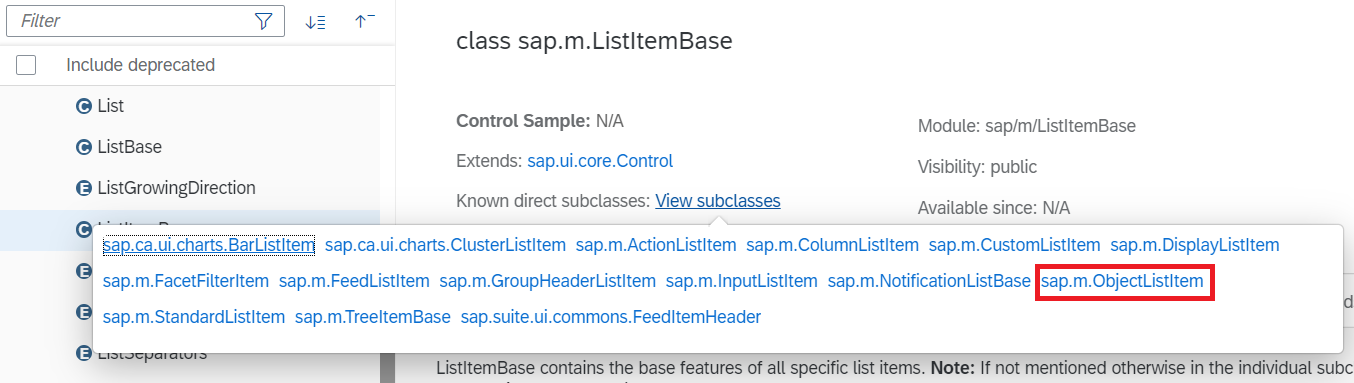
<mvc:View controllerName="sap.m.sample.ObjectListItem.List" xmlns:mvc="sap.ui.core.mvc" xmlns="sap.m"> <List items="{/ProductCollection}" headerText="Products"> <items> <ObjectListItem title="{Name}" type="Active" press="onListItemPress" number="{ parts:[{path:'Price'},{path:'CurrencyCode'}], type: 'sap.ui.model.type.Currency', formatOptions: {showMeasure: false} }" numberUnit="{CurrencyCode}"> <firstStatus> <ObjectStatus text="{Status}" state="{ path: 'Status', formatter: 'sap.m.sample.ObjectListItem.Formatter.status' }" /> </firstStatus> <attributes> <ObjectAttribute text="{WeightMeasure} {WeightUnit}" /> <ObjectAttribute text="{Width} x {Depth} x {Height} {DimUnit}" /> </attributes> </ObjectListItem> </items> </List> </mvc:View> 大写字母开头的都是Control,小写字母开头的都是Aggregations。
Control里面可以放入很多Object,Aggregations就是为了将这些Object集合在一起。
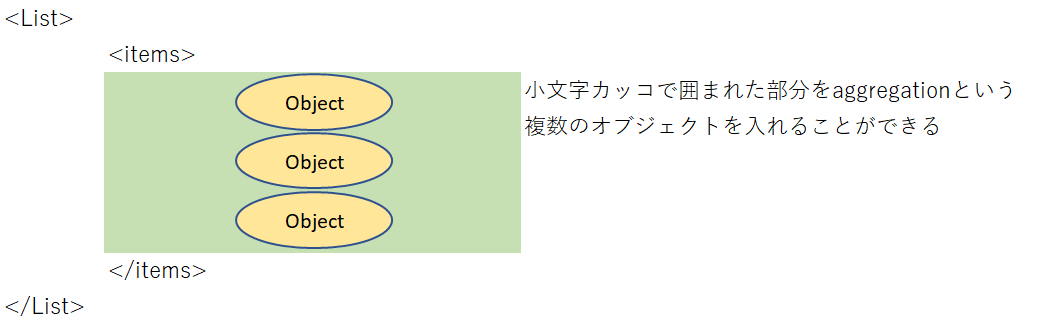
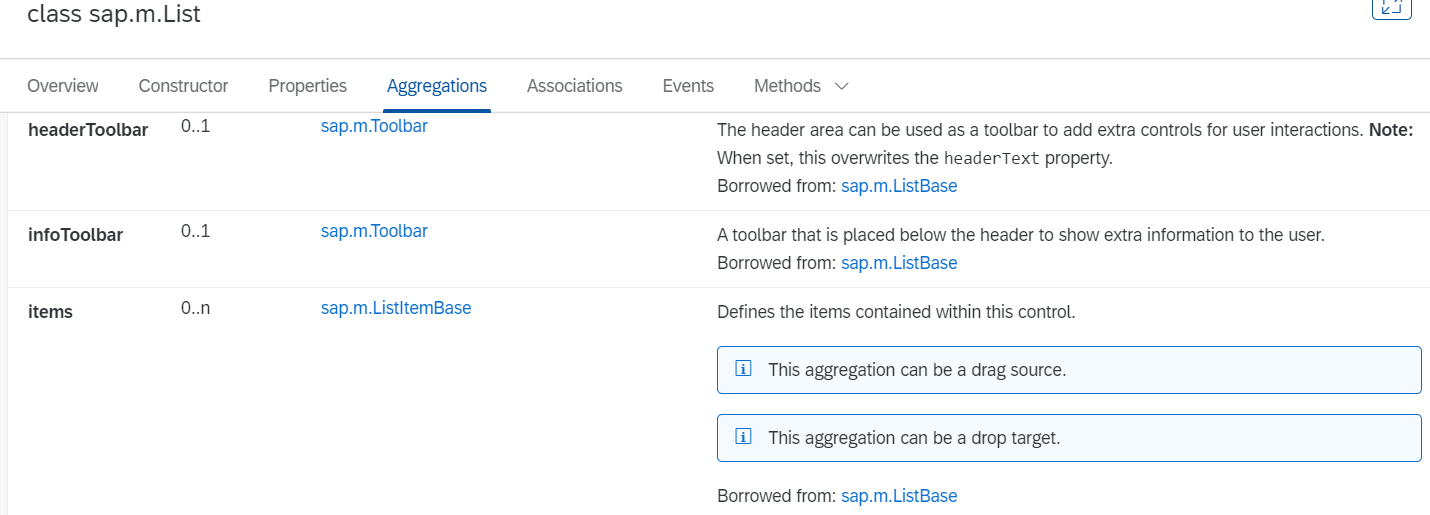
所以顺序就以这种方式来书写:
Control Aggregations Control Aggregations...
在上面的例子中<items>不写也不会报错,因为控件将其声明为默认值,但是为了便于阅读,都要加上Control对应的Aggregations。
来源:博客园
作者:suoluo119
链接:https://www.cnblogs.com/suoluo119/p/11496866.html