
问题
General Information
I have a ListView containing multiple columns. I have used a Microsoft Method to sort my ListView Columns. The ListView is populated by a SQL Query which correctly sorts Strings and Integers together (code shown below). For Example:
String & Integer Sorting Problem
The following JobNumber strings are considered as sorted
"10", "1", "2", "3"
Using my SQL Query, they will become
"1", "2", "3", "10"
SQL String & Integer Sorter
Here is the Query I use to sort Strings and Integers correctly
SELECT PK_BillHeader, JobNumber, Description
FROM dbo.BillHeaders
ORDER BY Case IsNumeric(JobNumber)
    When 1 Then Replicate('0', 50 - Len(JobNumber)) + JobNumber
        Else JobNumber
    End
This enters zeros until it gets the maximum length of my SQL column (50 chars) minus the JobNumber's current length. That way, everything is considered as a string (including integers) which can then be sorted out correctly.
My Problem
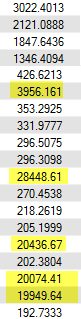
When I click on the ListView Column Header (causing it to sort), it stops sorting the strings and integers correctly as it did with my SQL query. Instead, it sorts everything as a string which replicates my "String & Integer" sort problem once more ... What is more, if I have decimal values (second picture), it sorts them out pretty weird (see my compare code)

Compare Code
Public Function [Compare](ByVal x As Object, ByVal y As Object) As Integer Implements IComparer.Compare
        Dim xItem As clsSortWrapper = CType(x, clsSortWrapper)
        Dim yItem As clsSortWrapper = CType(y, clsSortWrapper)

        Dim xText As String = xItem.sortItem.SubItems(xItem.sortColumn).Text
        Dim yText As String = yItem.sortItem.SubItems(yItem.sortColumn).Text

        If Decimal.TryParse(xText, vbNull) Then xText = xText.PadLeft(10, "0"c)
        If Decimal.TryParse(yText, vbNull) Then yText = yText.PadLeft(10, "0"c)
        Return xText.CompareTo(yText) * IIf(Me.ascending, 1, -1)
    End Function
Is there a simpler way to acheive my result of sorting a ListView with Strings and Integers?
Note:
I omitted posting the ListView Sort code here because it would've clustered the post quite a bit. I provided the link which explains it thoroughly.
回答1:
Here's another way. In your Sort code pad the strings with 0's when you call CompareTo.
If Integer.TryParse(xText, VBNull) Then
      xText = xText.PadLeft(6, "0"c)
End If
If Integer.TryParse(yText, VBNull) Then
      yText = yText.PadLeft(6, "0"c)
End If
Return xText.CompareTo(yText) * IIf(Me.ascending, 1, -1)
This way "11004" will be compared as "011004" and appear before "110030", but the padding is only for comparison, the value will still be displayed as "11004".
UPDATE:
Normal strings will be sorted without padding now.
回答2:
Approach #1: Codesnippet from Natural Comparer Whole source code is here
This will sort the way you described in your question, also supporting roman values ('D', 'X', etc.).
int System.Collections.Generic.IComparer<string>.Compare(string string1,
                                                 string string2)
{
  mParser1.Init(string1);
  mParser2.Init(string2);
  int result;
  do
  {
    if (mParser1.TokenType == TokenType.Numerical &
                 mParser2.TokenType == TokenType.Numerical)
      // both string1 and string2 are numerical
      result = decimal.Compare(mParser1.NumericalValue, mParser2.NumericalValue);
    else
      result = string.Compare(mParser1.StringValue, mParser2.StringValue);
    if (result != 0) return result;
    else
    {
      mParser1.NextToken();
      mParser2.NextToken();
    }
  } while (!(mParser1.TokenType == TokenType.Nothing &
             mParser2.TokenType == TokenType.Nothing));
  return 0; //identical
}
Approach #2: Easy, customized Comparer (Without Roman values)
class MyComparer : IComparer<string>
{
    public int Compare(string x, string y)
    {
        int xVal, yVal;
        var xIsNumeric = int.TryParse( x, out xVal );
        var yIsNumeric= int.TryParse( y, out yVal );

        if (xIsNumeric && yIsNumeric)
            return xVal.CompareTo(yVal);
        if (!xIsNumeric && !yIsNumeric)
            return x.CompareTo(y);
        if (xIsNumeric )
            return -1;
        return 1;
    }
}
来源:https://stackoverflow.com/questions/17351484/how-to-sort-listview-columns-containing-strings-integers